146 exercises, every one with a demo
Barbell, dumbbell, cable, kettlebell, bands, bodyweight, cardio and the gym machines. Tell WrkFit what you own and the library filters to what you can actually do.
WrkFit is a fast, no-nonsense logger you can use entirely on your own and, if you want one, a programming desk for a coach behind you. Here is the whole flow, in order.
Everything below is free, forever, and none of it needs a coach. You never pay for WrkFit; only coaches do.
Sign up and start training. No invite, no code, nobody to wait on. Build your own routines, pull from a library of 146 exercises, and log. Most people use WrkFit this way and never have a coach at all.
If you do have one, open the link they send you and you'll land already connected. You can also connect, or disconnect, later from Settings. Either way it's the same app.
A routine is a reusable list of exercises you start with one tap. Tap any exercise in it to set its own sets and reps, or switch it to Time for cardio: 10 minutes on the bike, or 3 rounds of 30 seconds. Add a note to an exercise and it shows up while you train. Start an empty session instead and add lifts as you go.
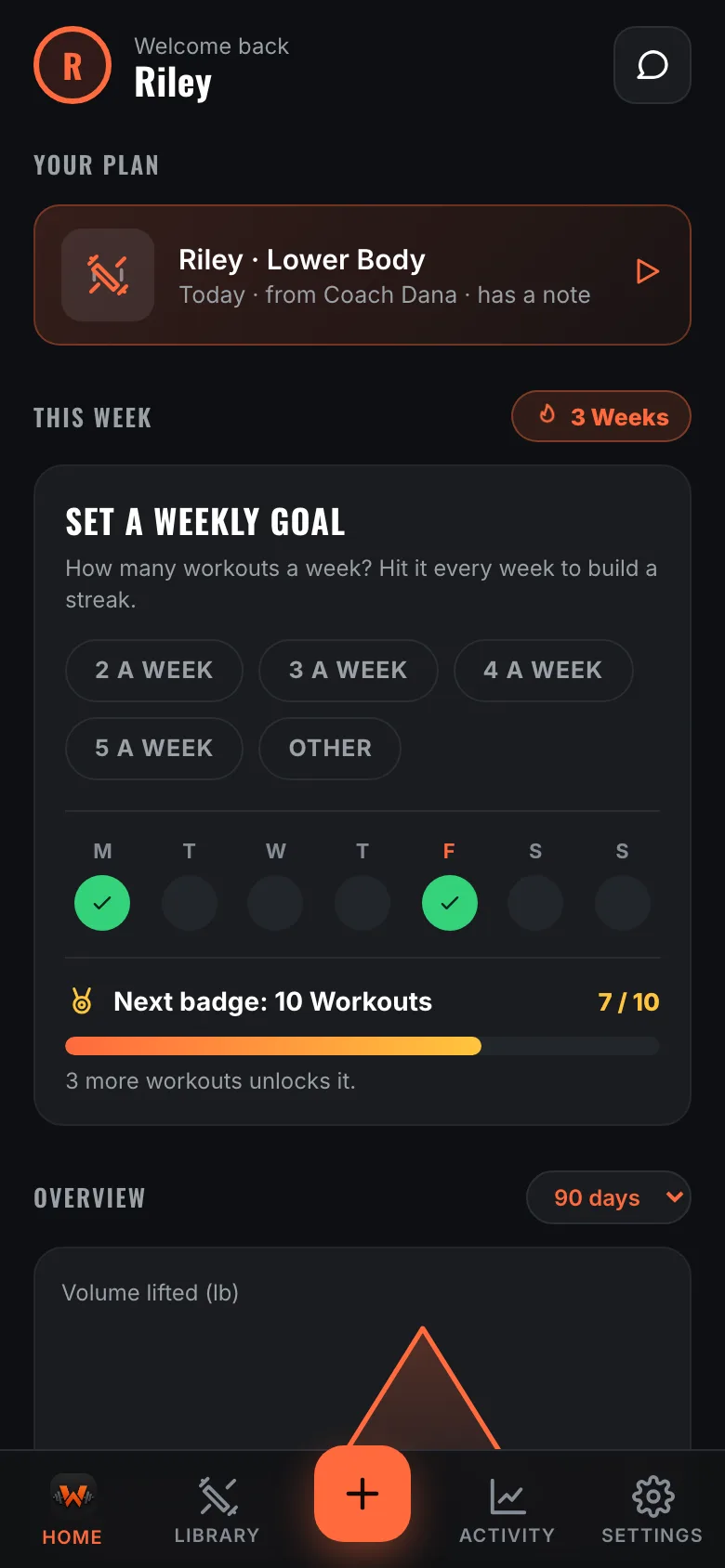
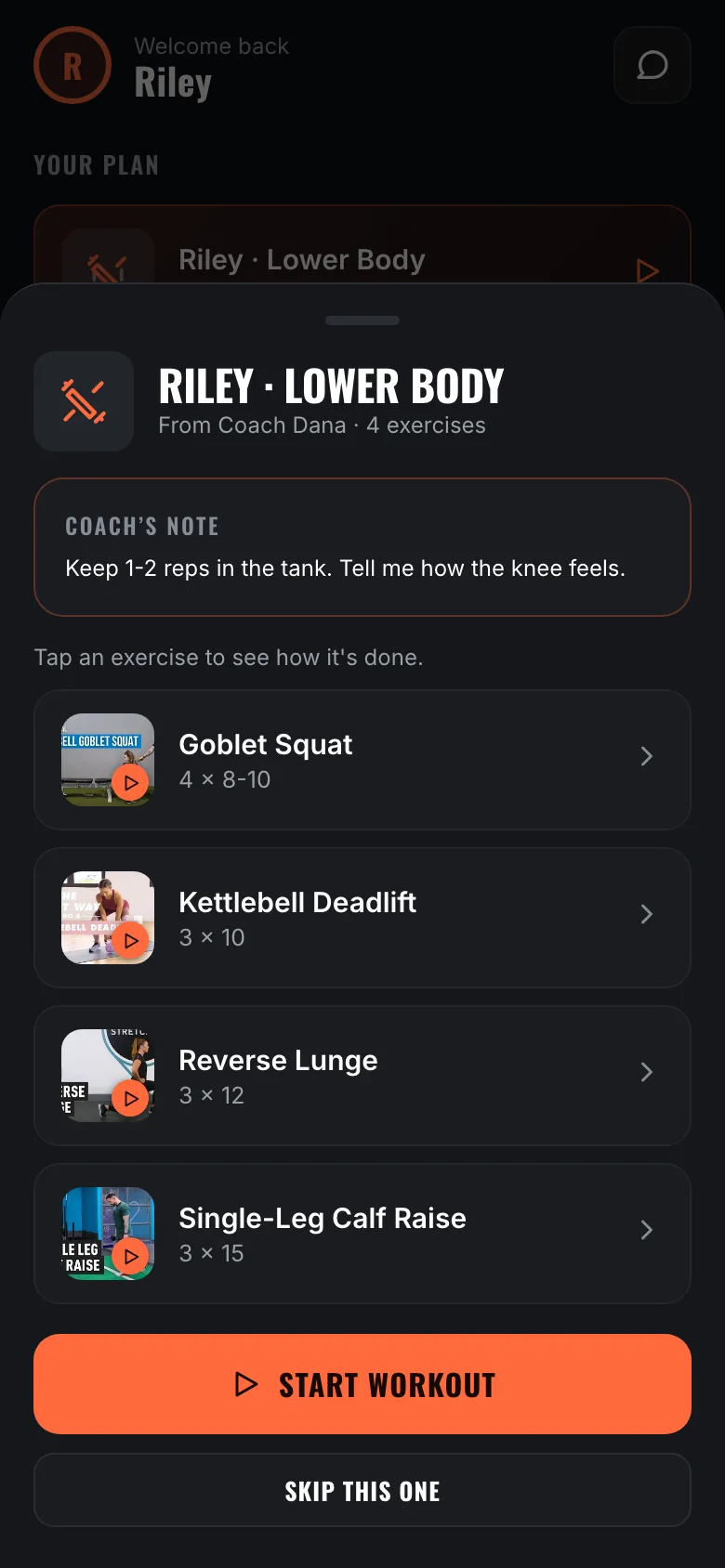
If you have a coach, what they schedule shows at the top of Home, including the days ahead. Tap one to read it and their note, and start it early if your week changes. Tap any exercise in it to see how it's done.
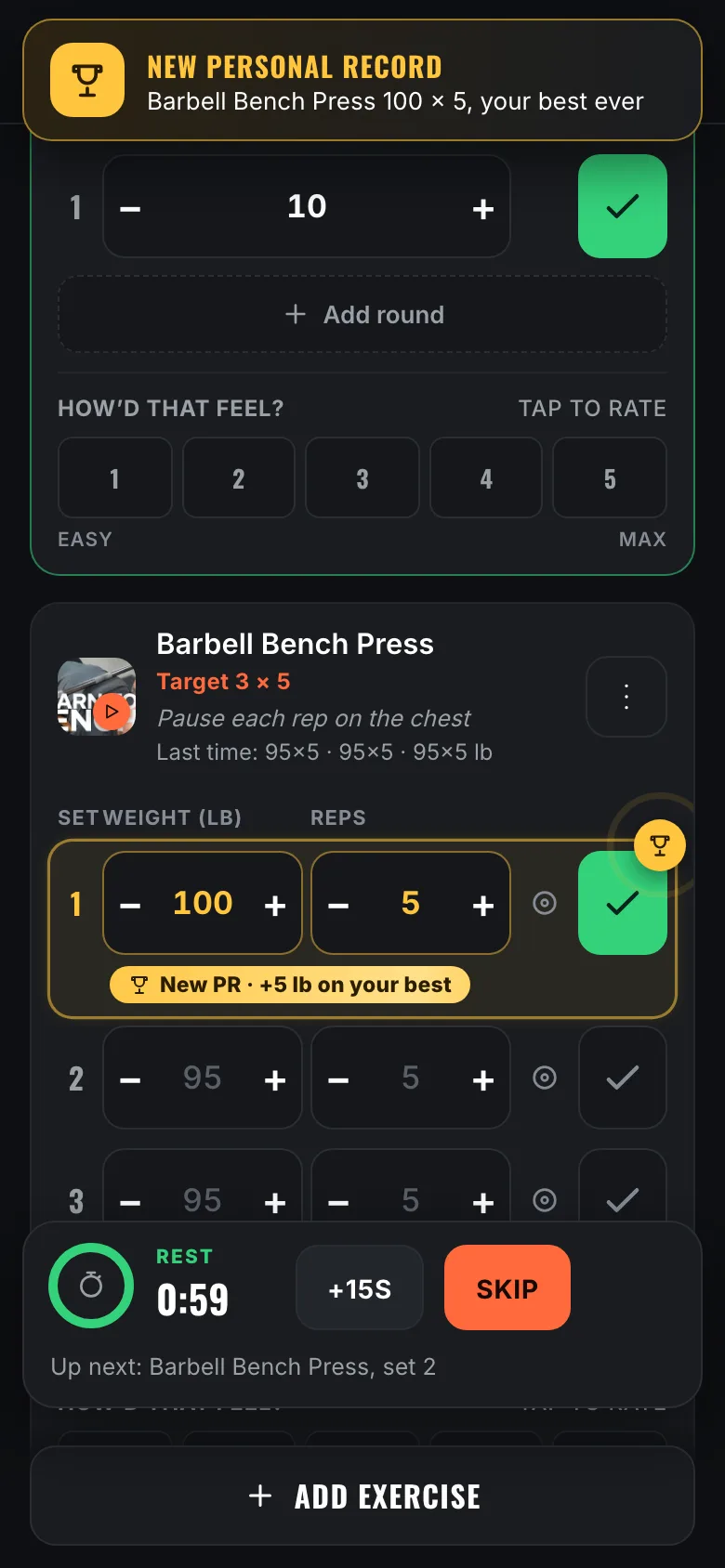
Every exercise pre-fills the weight and reps from your last session, so a set is usually a single tap. Beat your last session and the set earns a gold Beat last time. Beat your best ever and a gold New Personal Record banner drops in while you're still under the bar. Records come in kinds: your best estimated max, the heaviest you've lifted, and the most reps at a weight. Finish every set of an exercise and it's marked Done.
Checking off a set starts the rest timer on its own. It says Rest, shows what's up next, and counts you down to Go. If your coach set the rest for that exercise, it uses theirs. Cardio logs as time instead of weight and reps. It keeps saving when the signal drops, and nothing gets logged twice.
Tap the back arrow and choose Keep It for Later or Discard Workout. A kept workout waits on Home with Resume and Discard. Come back after a break and the clock skips the time you were away.
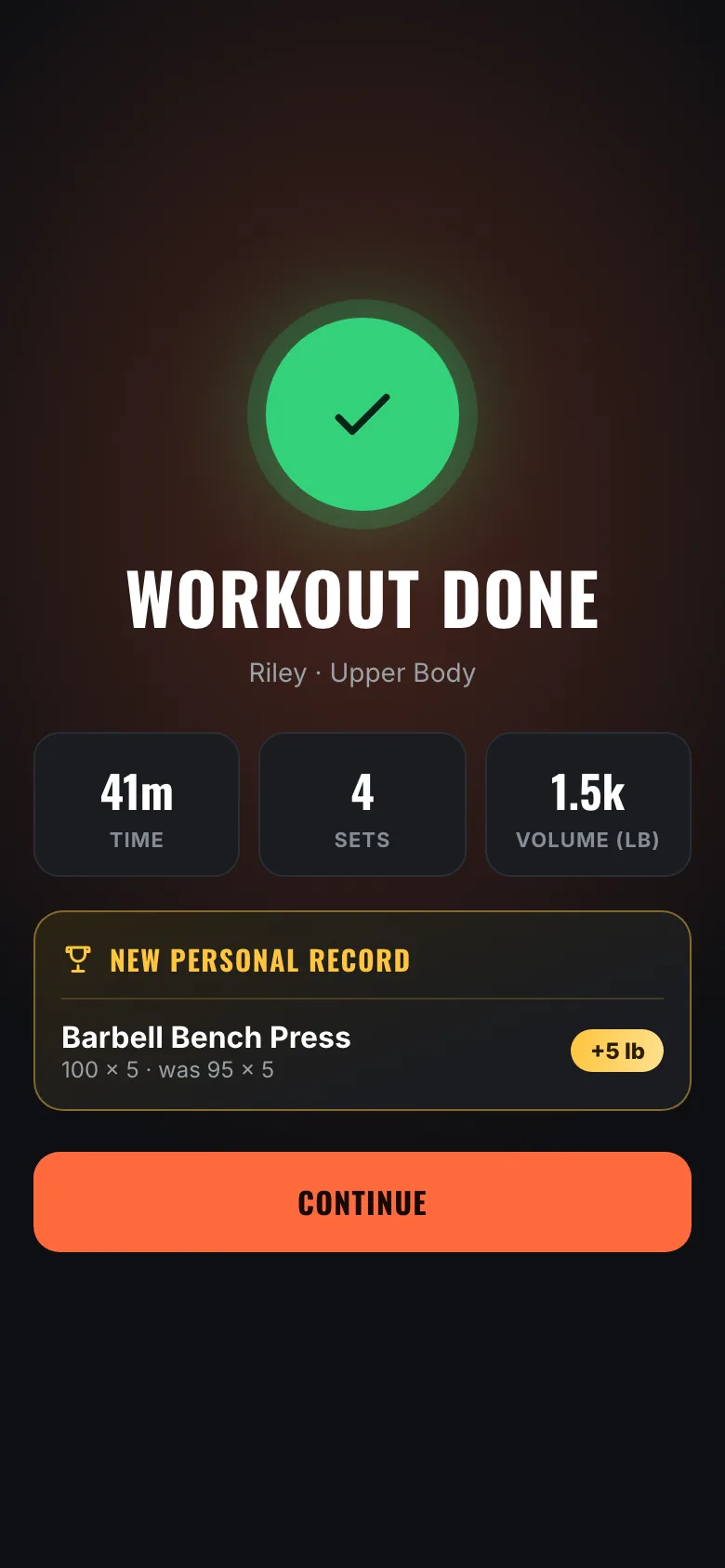
Tap Finish and WrkFit celebrates the work: your time, sets and volume count up, and every record you set is listed, including your best volume ever on a lift. Your very first workout gets a Day One medal instead, and coming back after two weeks or more off gets a welcome back.
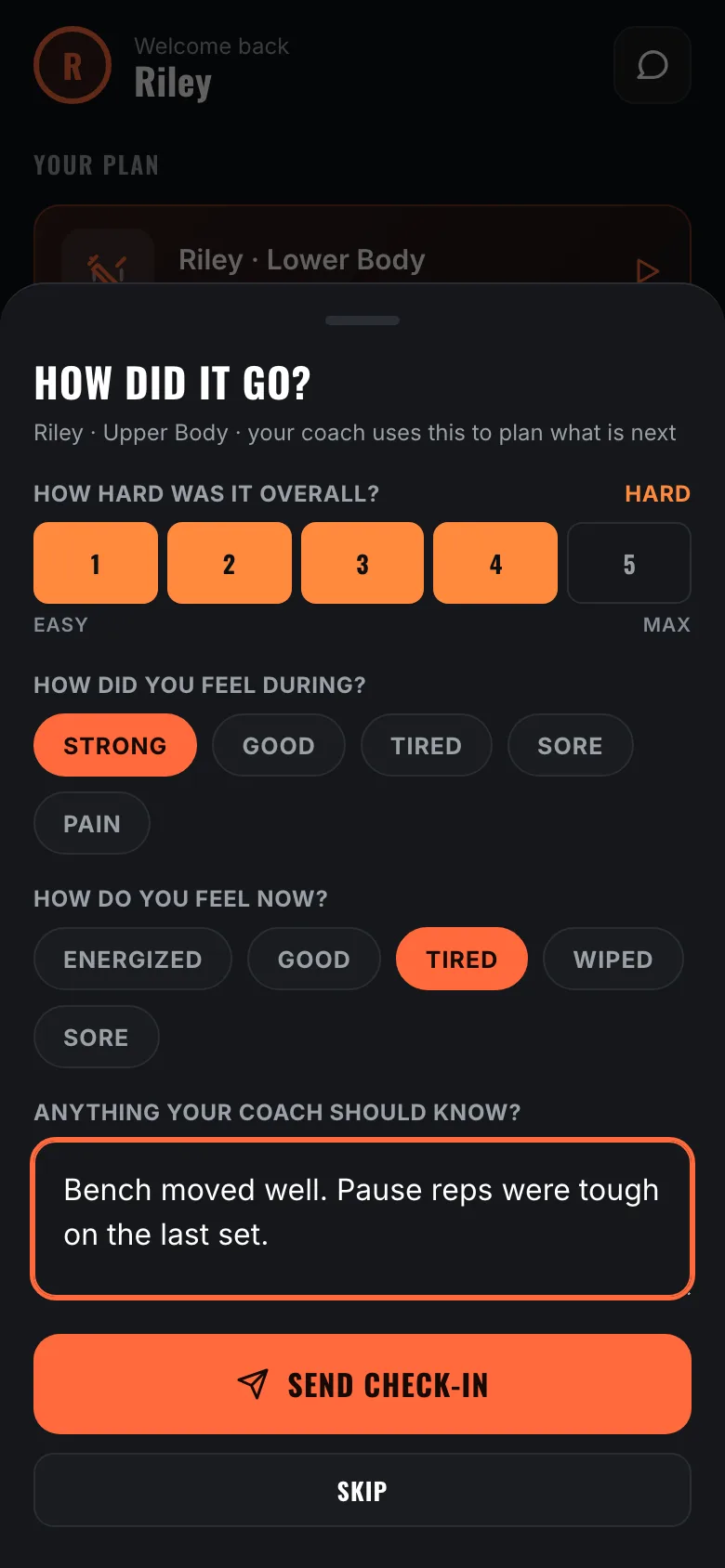
Then it's straight into a short check-in, so the session is properly closed before you put the phone away.
Turn on Reduce Motion in your iPhone's settings and WrkFit quiets every animation, confetti included. On iPhone, the big moments also come with a tap you can feel.
The check-in takes about 20 seconds: how hard it was overall, how you felt during it, how you feel now, and a note. Every question is optional and Skip is always there.
If you have a coach, it lands on that workout for them, they get a notification, and a green check tells you it arrived. Pain shows in red everywhere, so it is never missed. Without a coach it simply stays in your own history.
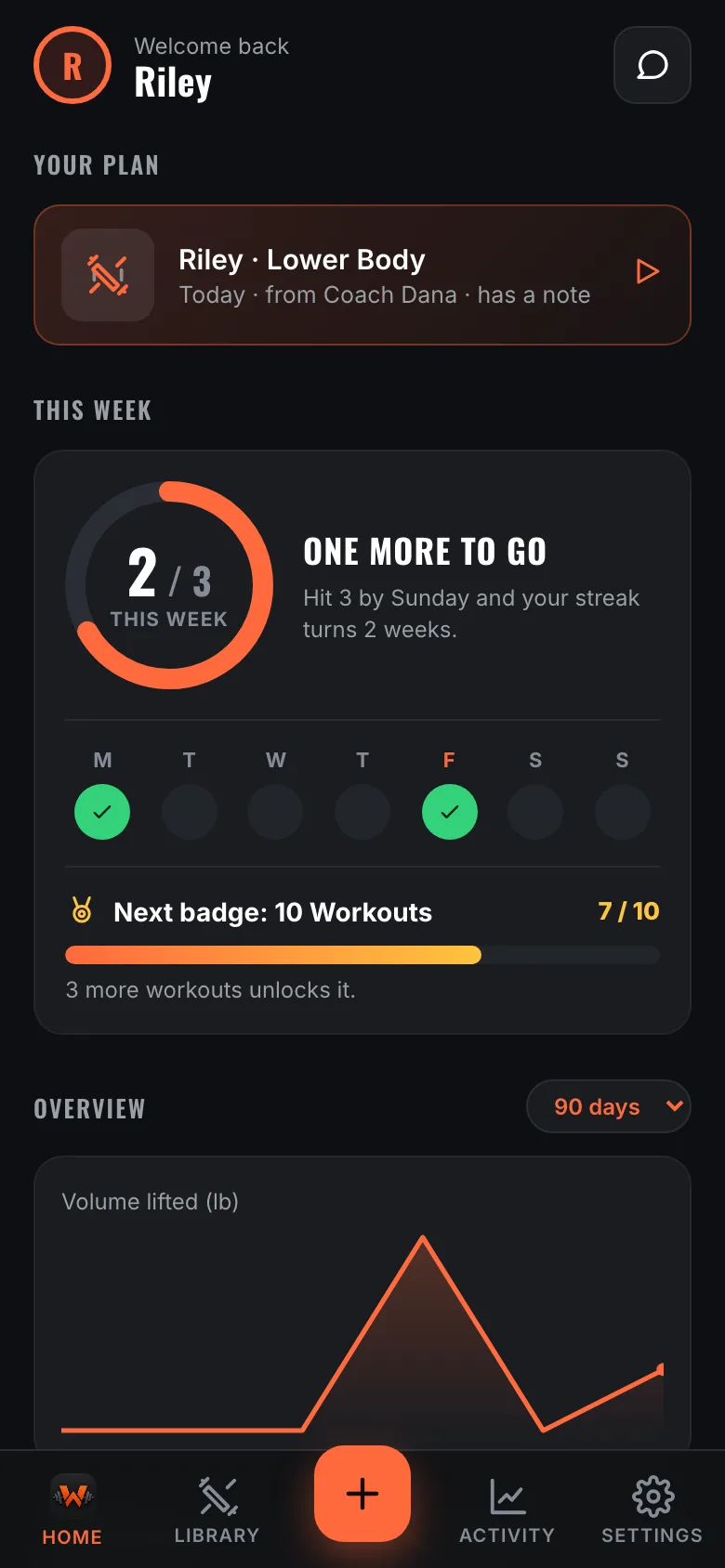
Pick how many workouts a week you're aiming for, from 1 to 7. Home shows a ring filling toward it, a dot for each day you trained, and what it takes to finish the week: One More to Go.
Hit your goal week after week and the streak grows. A week still in progress never breaks it, so a Monday morning never resets anything.
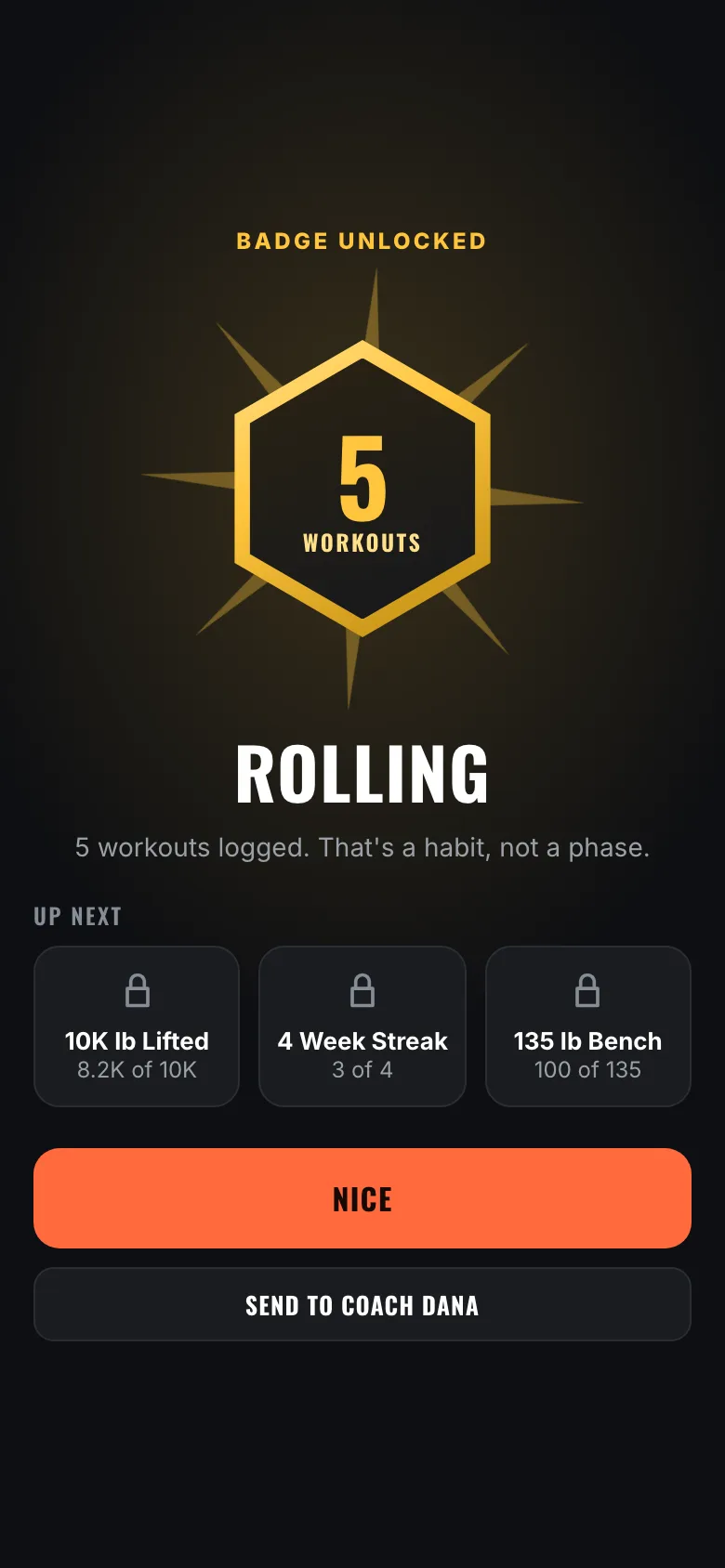
Milestones unlock badges, and each one gets its moment once, right after the workout that earned it. You can send it to your coach with one tap.
There are badges for workouts logged, week streaks, personal records, Perfect Months on your goal, lifetime weight lifted up to the Million Pound Club, the 1, 2 and 3 Plate Clubs on bench, squat and deadlift, the 1,000 lb Club, and coming Back at It after time off.
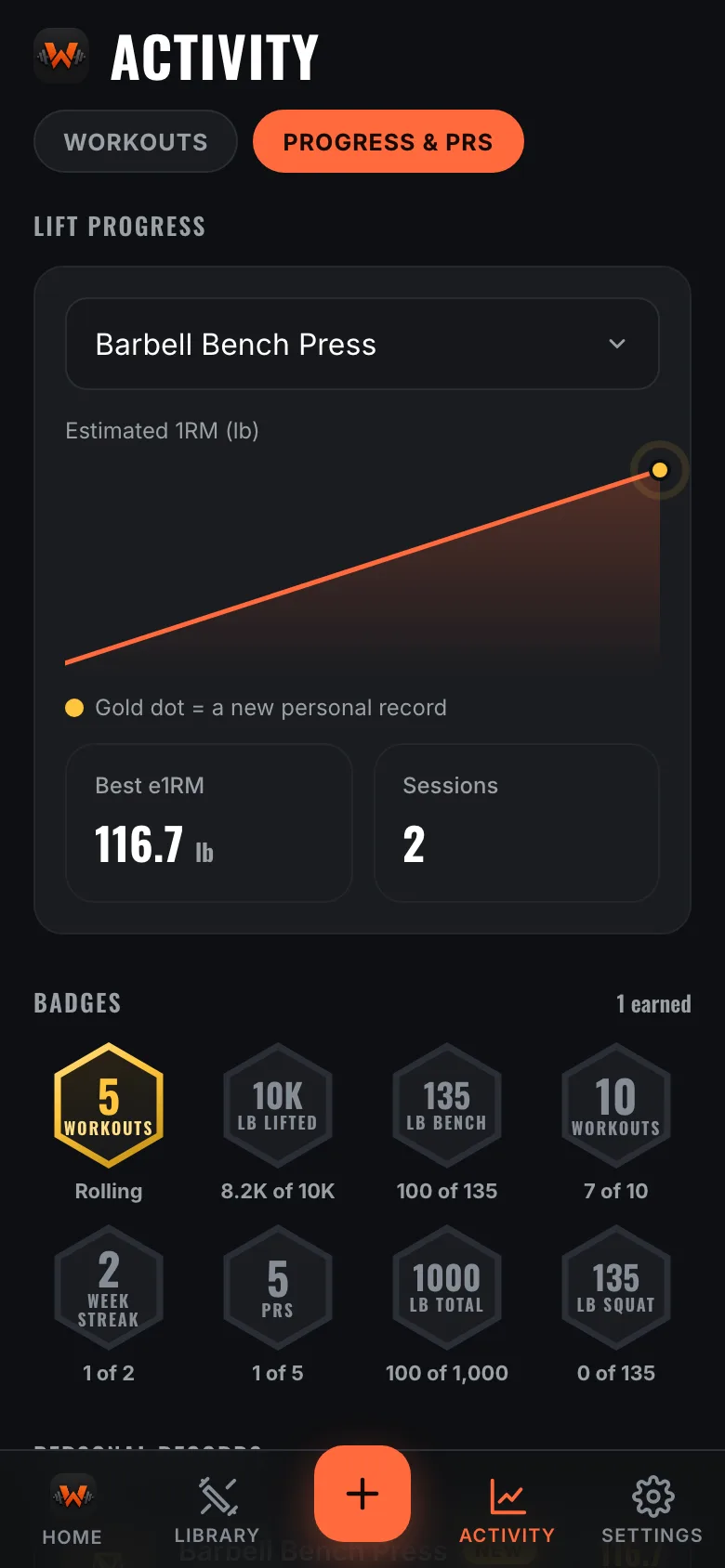
Activity → Progress charts any lift over time, with every session that set a record marked in gold. Your personal records are listed underneath, and the ones from this week wear a New tag.
Your badges live here too, alongside the next few you're closest to.
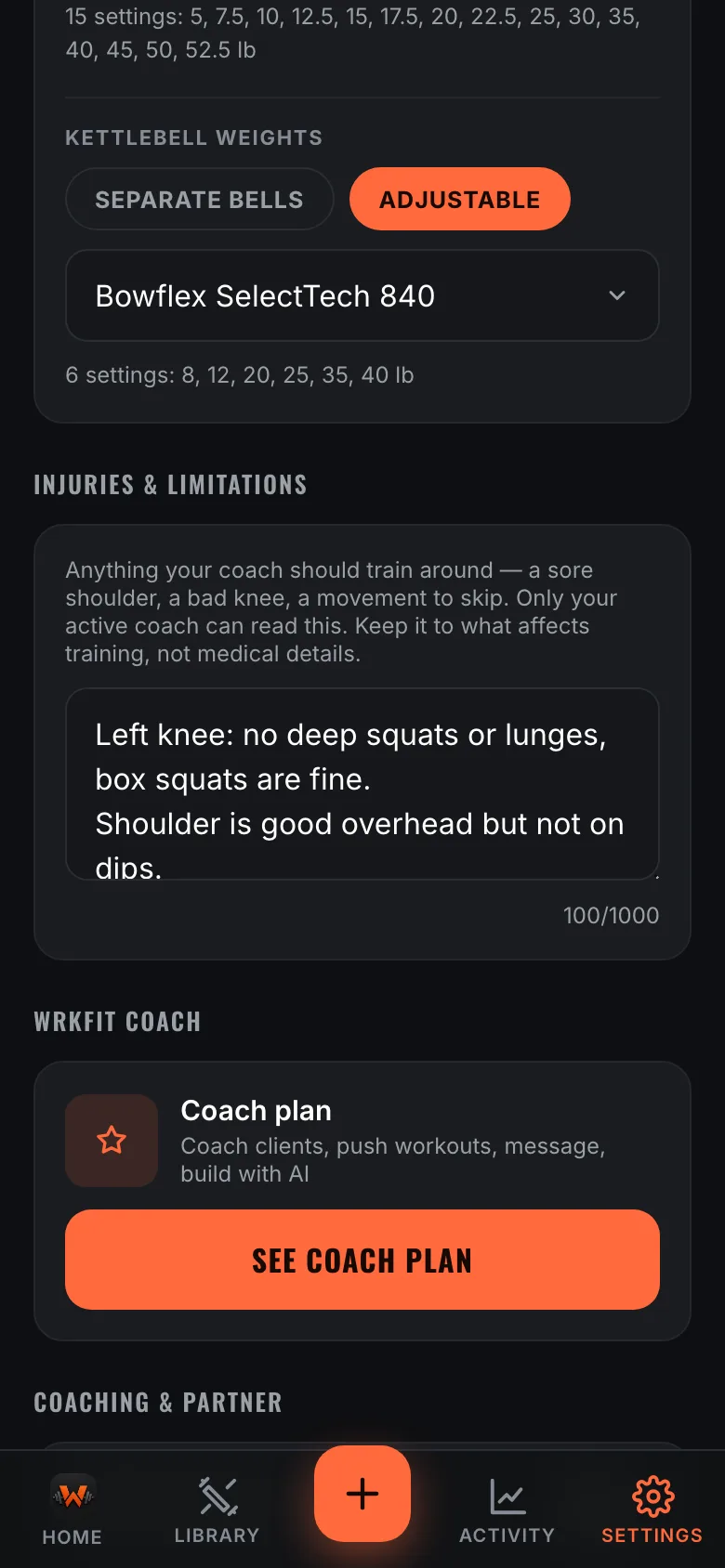
Settings has an Injuries & limitations box. Write what a coach should train around, like a sore shoulder, a knee that hates deep squats, or a movement to skip, and it shows up on your profile on their side before they program anything.
Only your active coach can read it, and only while you're connected. Keep it to what affects training; it isn't a medical record and nobody else sees it.
My Gear starts with one question: where do you train? Pick Gym and every exercise is open, machines included. Pick Home and tick what you have, grouped into free weights, benches and racks, cardio and extras. The Library then shows only what you can actually do.
Then add the sizes. Pick separate pairs or bells, or an adjustable set: choose a Bowflex model and WrkFit fills in its exact settings, or type in the settings yours offers. Your coach sees exactly what you can load.
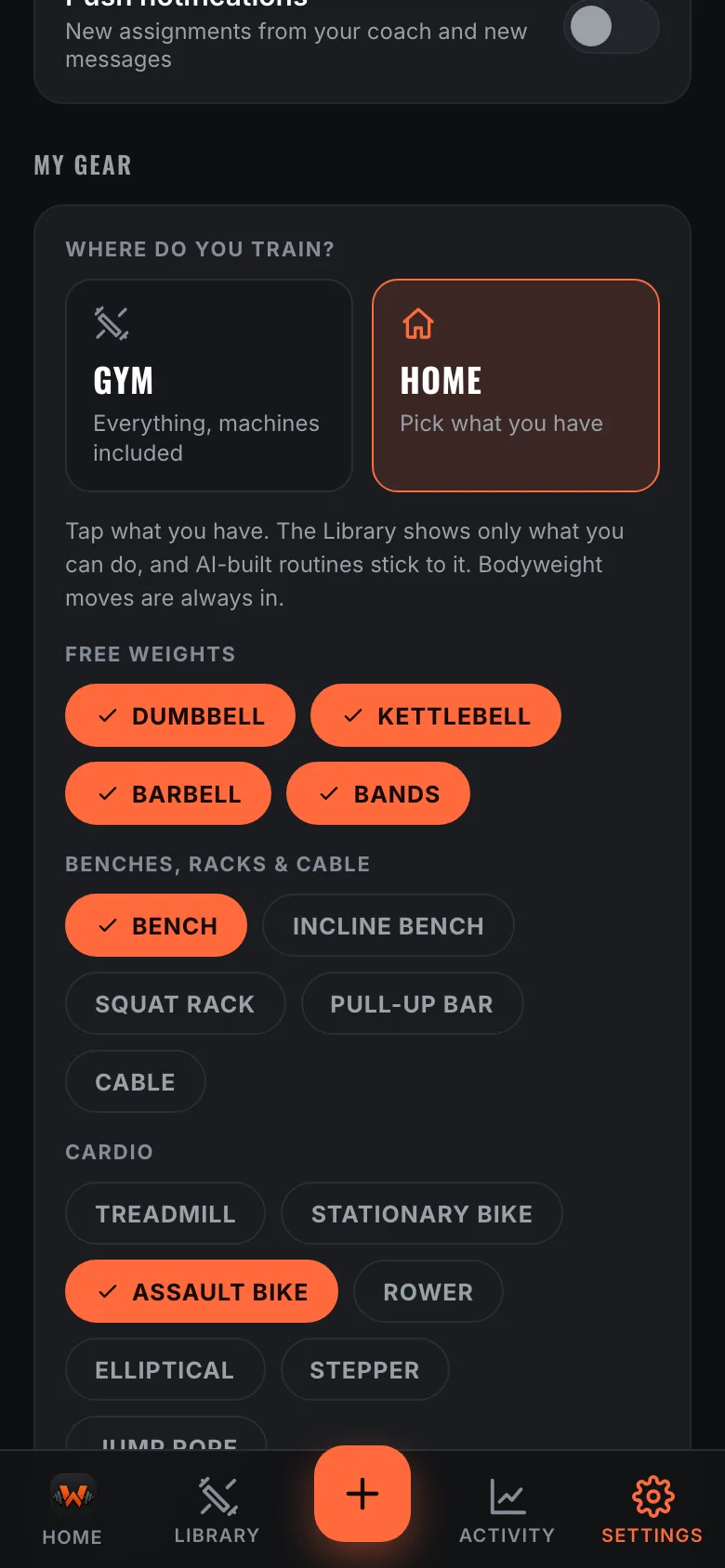
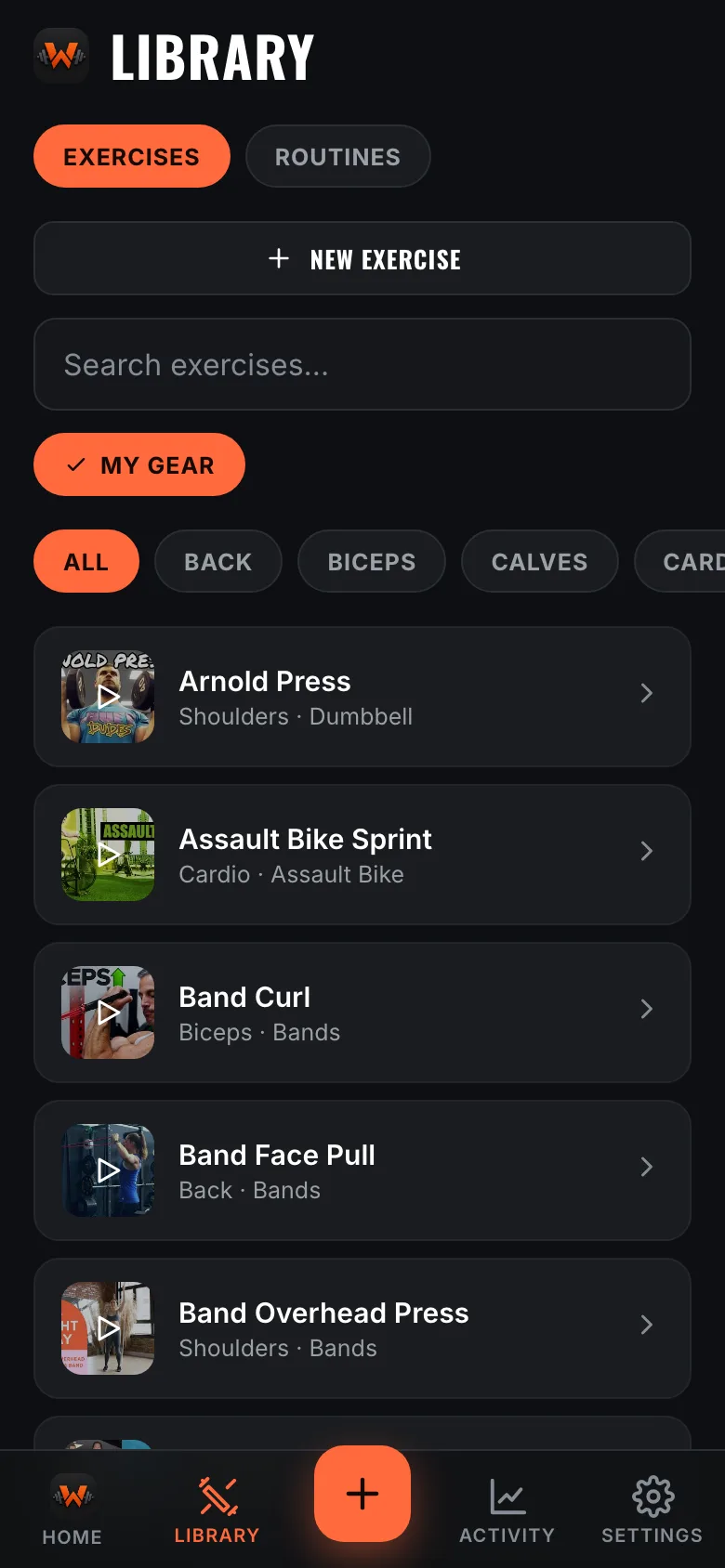
All 146 exercises have a short form demo. Tap one in the Library, in a routine, or right in the middle of a workout, and the card grows into a player where you are. You never leave the app or lose your place.
If your coach recorded their own demo for an exercise, you'll see theirs too.
Turn it on in Settings. It only ever writes workouts across; WrkFit never reads your health data.
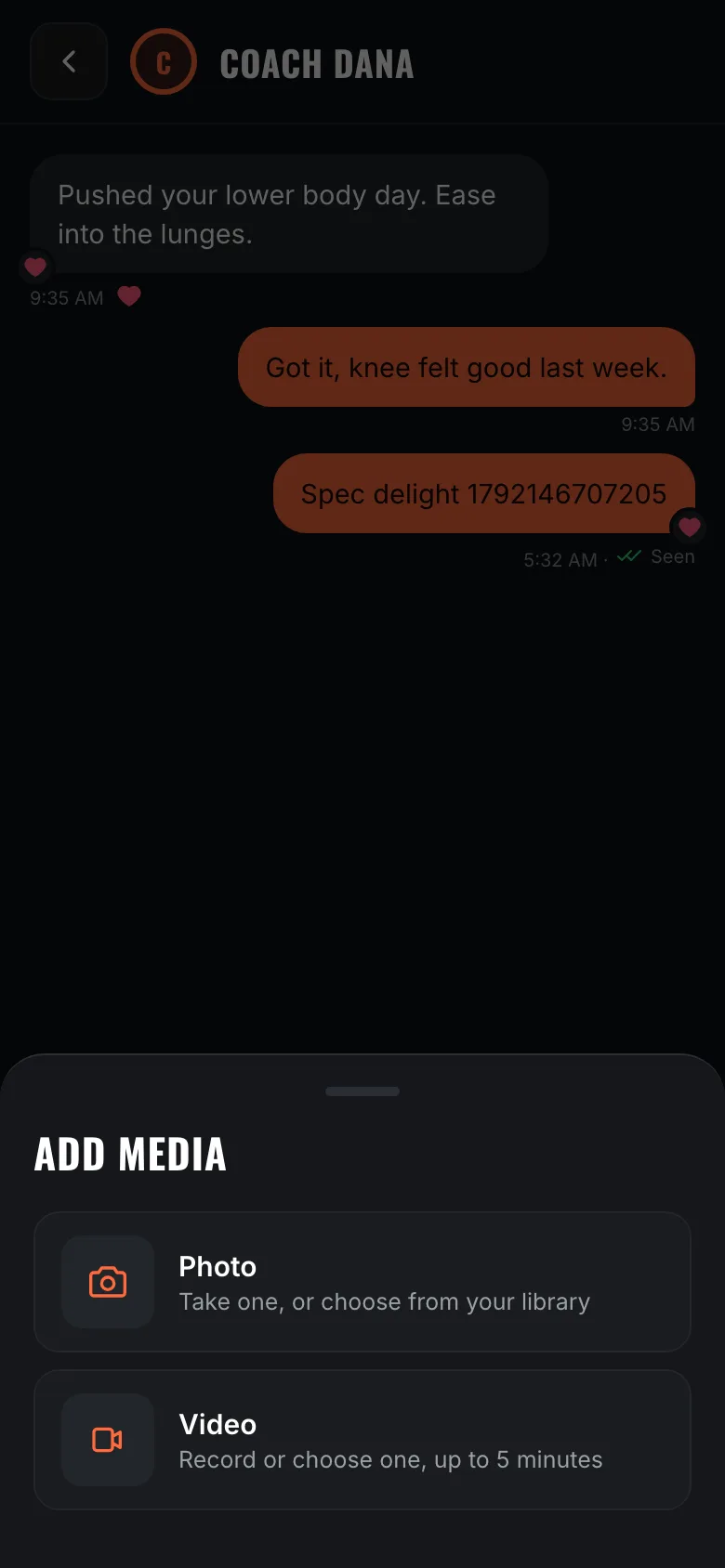
In chat, Add Media sends a photo or a video. Record a set for a form check or pick one from your library, up to 5 minutes.
Photos are shrunk on your phone before they send, and videos are sent straight to storage with a progress bar, so a long clip doesn't hang. Videos stay for 90 days; photos stay with the conversation.
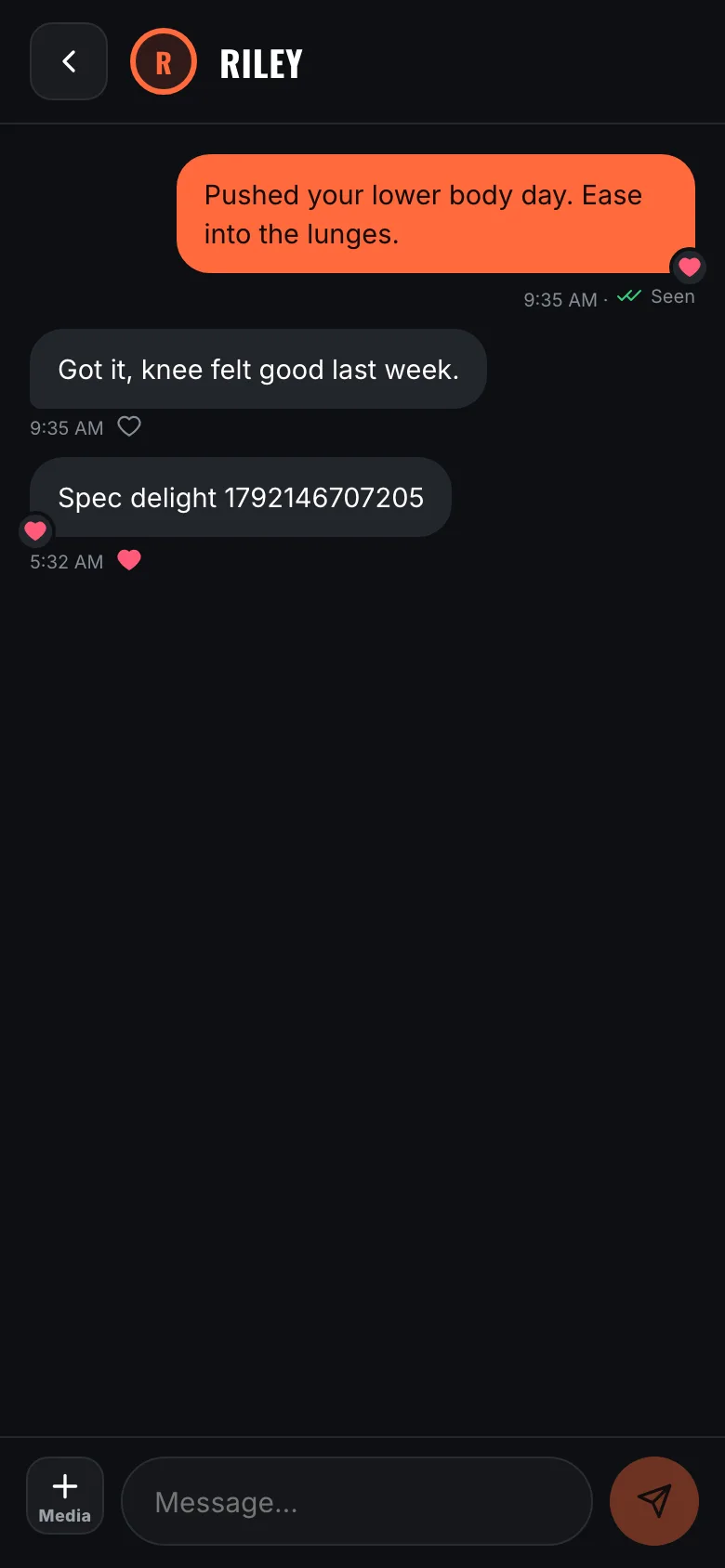
Your newest message shows Delivered, then Seen once it's read. Double-tap a message to heart it, and you'll see when the other person is typing.
Coaching tools are the paid side of WrkFit. Your clients never pay anything.
Settings → Coaching turns on the coach side and gives you a personal invite link. Send it to a client and they land connected to you the moment they sign up.
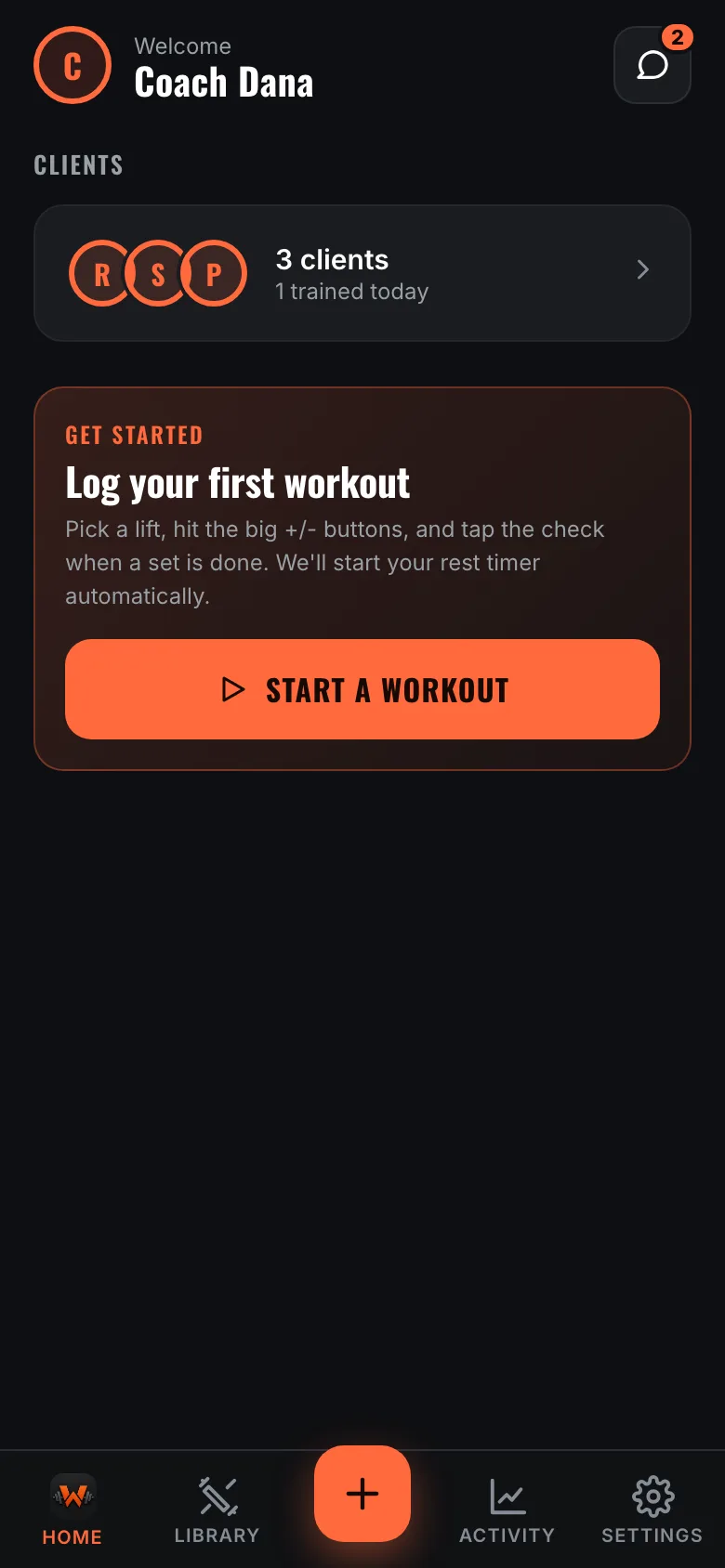
Your clients appear on your home screen from then on, with who trained today at a glance.
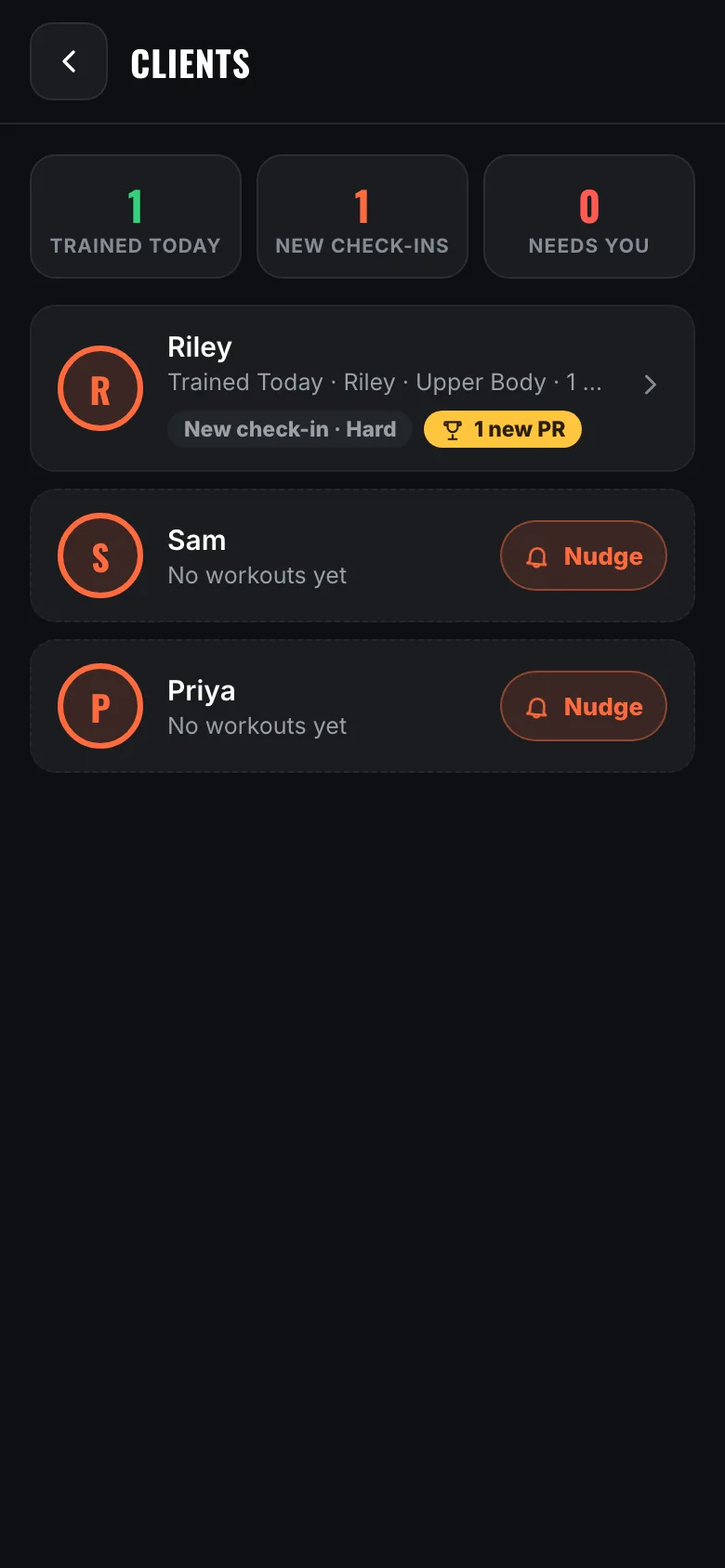
Your client list leads with what needs attention. A green dot means they're training right now, with how far through the workout they are. Pain from a check-in this week shows in red, fresh check-ins and new records get a chip, and the top of the list counts who trained today.
Anyone who's gone quiet for three days or more gets a Nudge button: a ready-to-send message you can edit first.
Tap a client for everything they've logged: sessions with the weight and reps they actually hit, how hard each exercise felt, their personal records and progress over time.
Every finished workout carries their check-in as a tag, like Hard · Tired, with Pain in red. You get a notification the moment they finish.
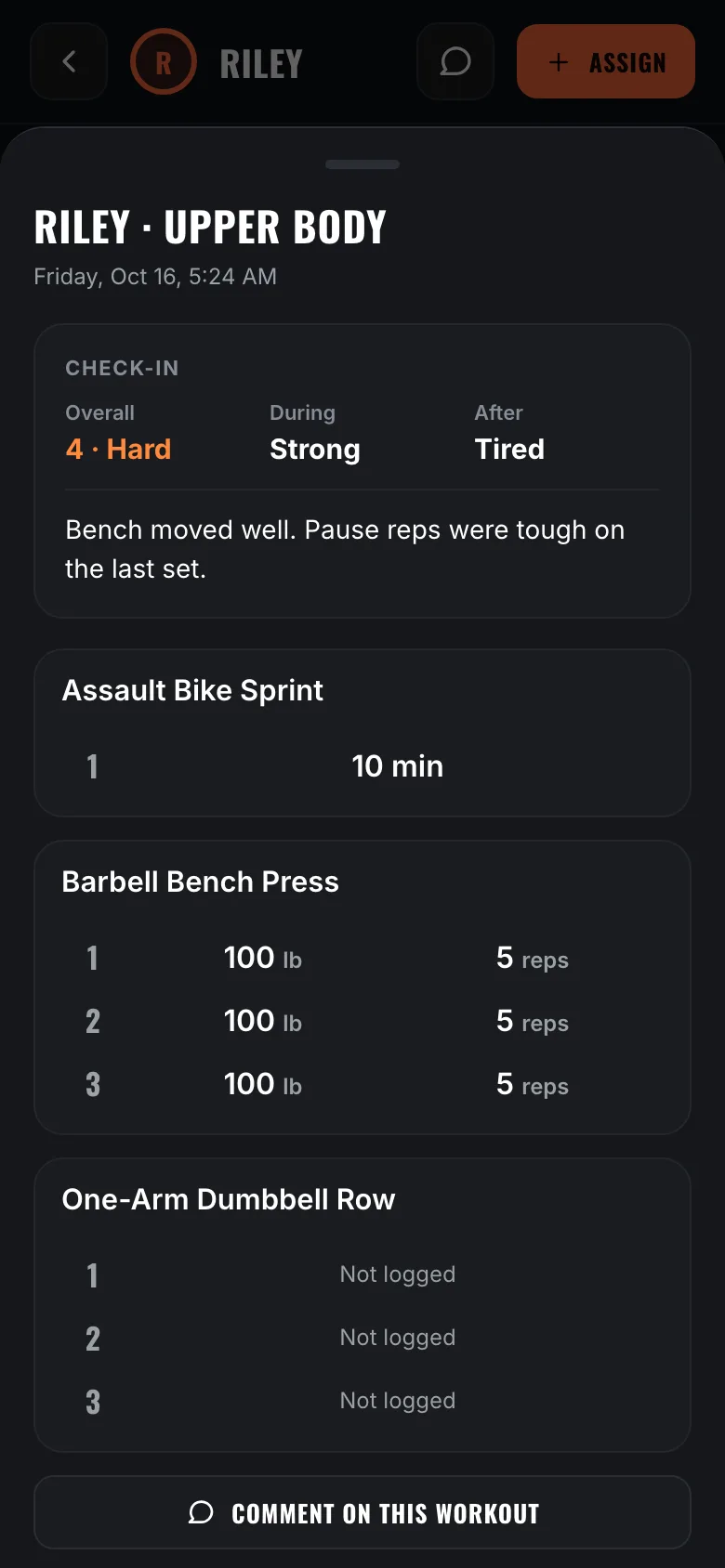
Open any workout and their check-in sits on top: how hard it was overall, how they felt during and after, and their note in their own words. Under it are the sets they actually did, and cardio shows as time.
You can comment on that workout directly, so your reply lands attached to the session it's about.
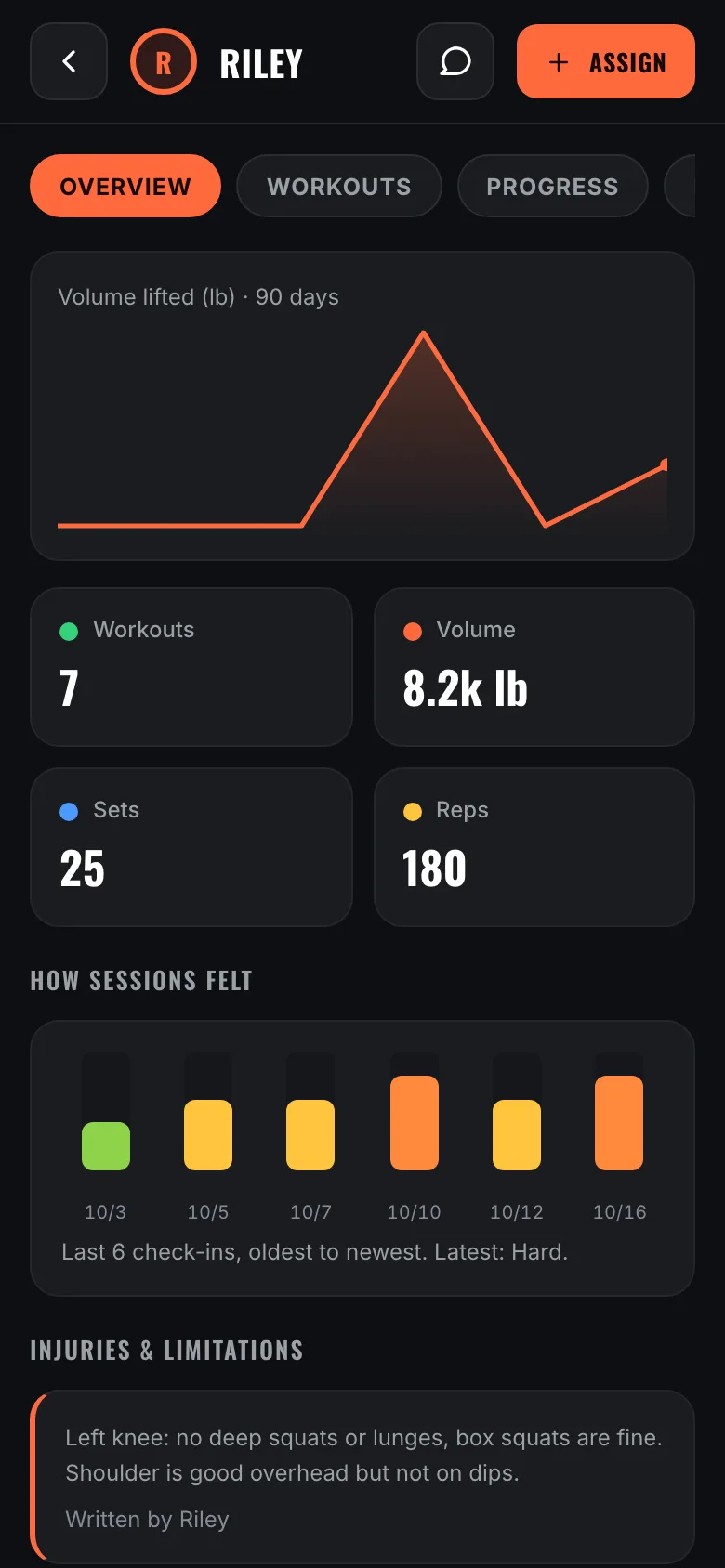
The client's overview shows How Sessions Felt: their last eight check-ins side by side, with any pain marked.
Three Hard or Max sessions in a row reads very differently from one, and it's right there before you program the next week.
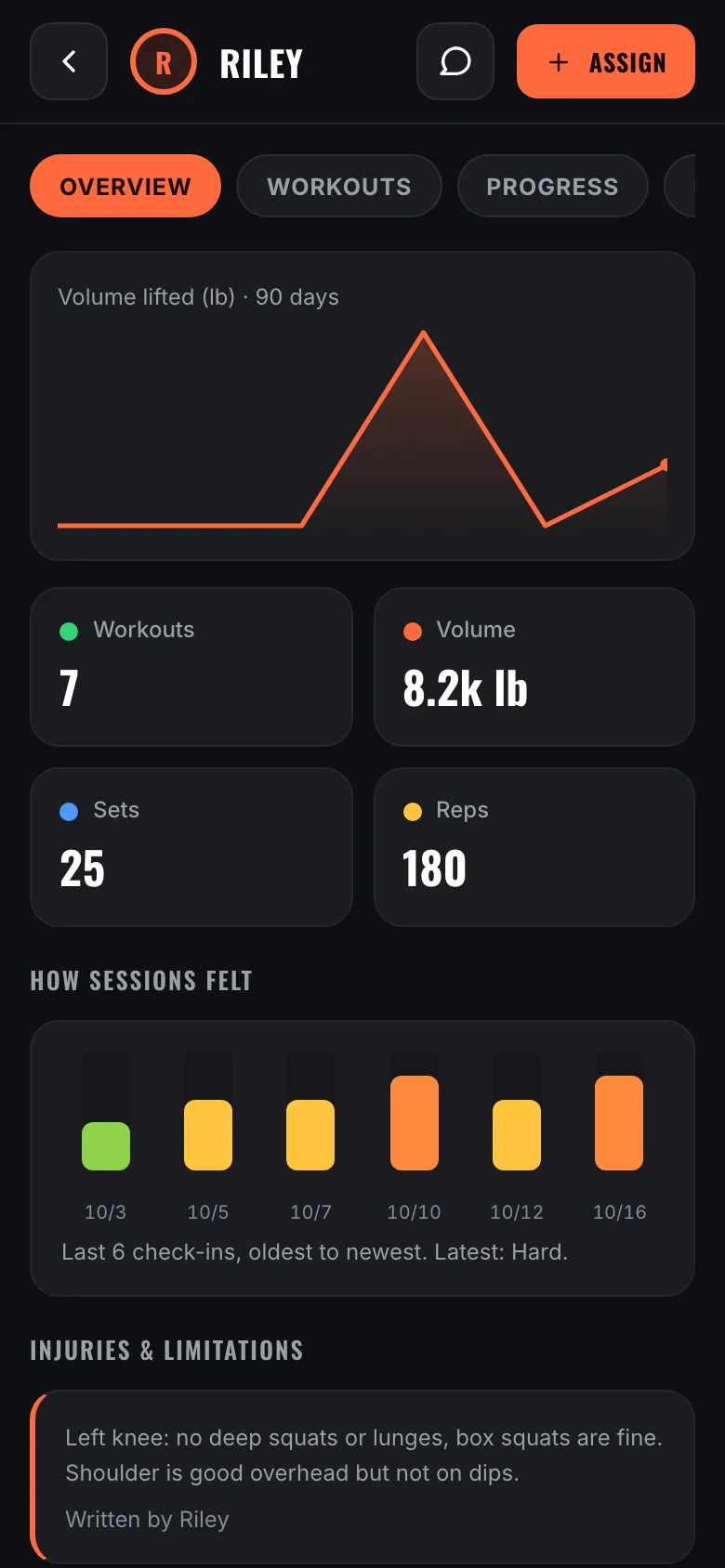
Your client writes their own injuries and limitations, and it sits on their overview above everything else, so you know about the knee before you write a squat day, not after.
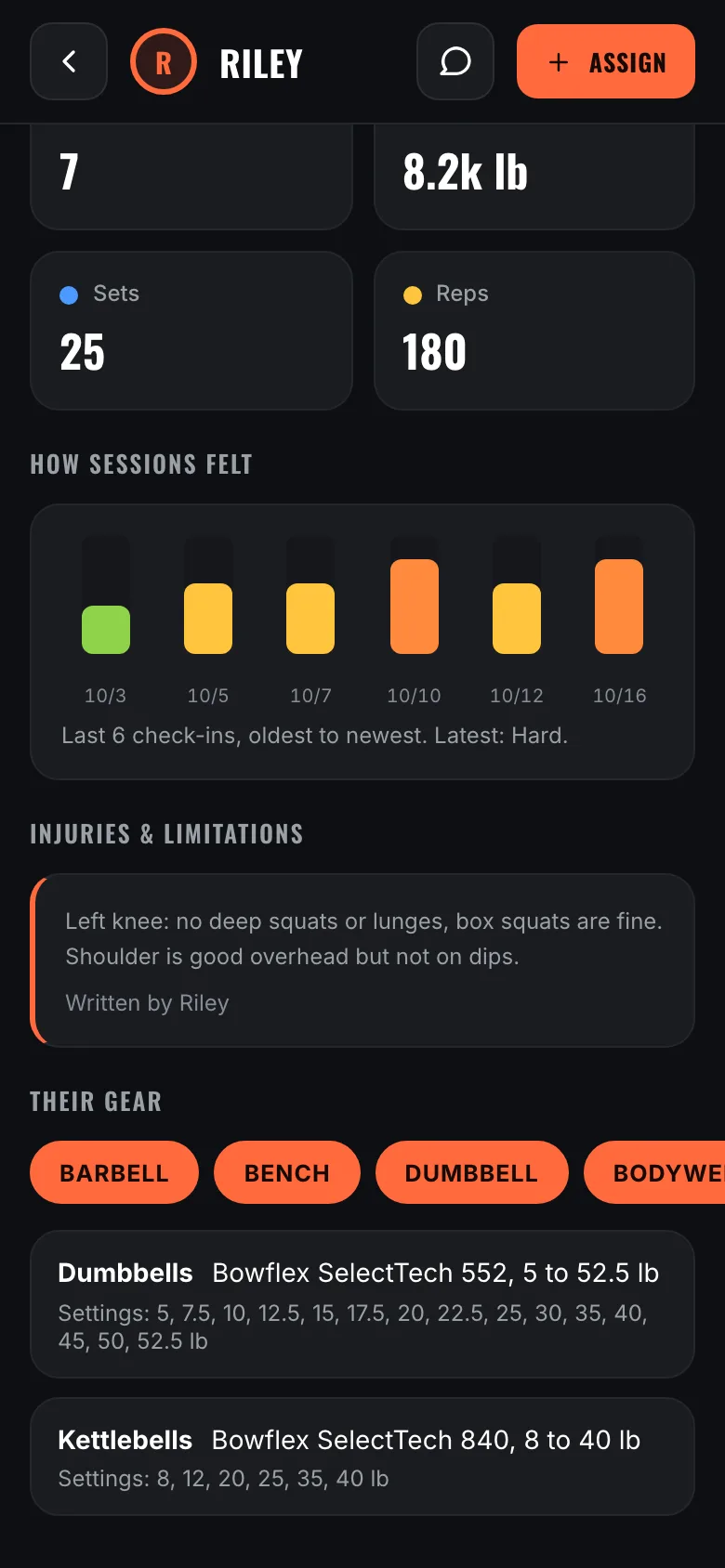
Their gear is right underneath, sizes included: a Bowflex 552 shows as 5 to 52.5 lb with every setting it has. Between the two you can see exactly what you have to work with.
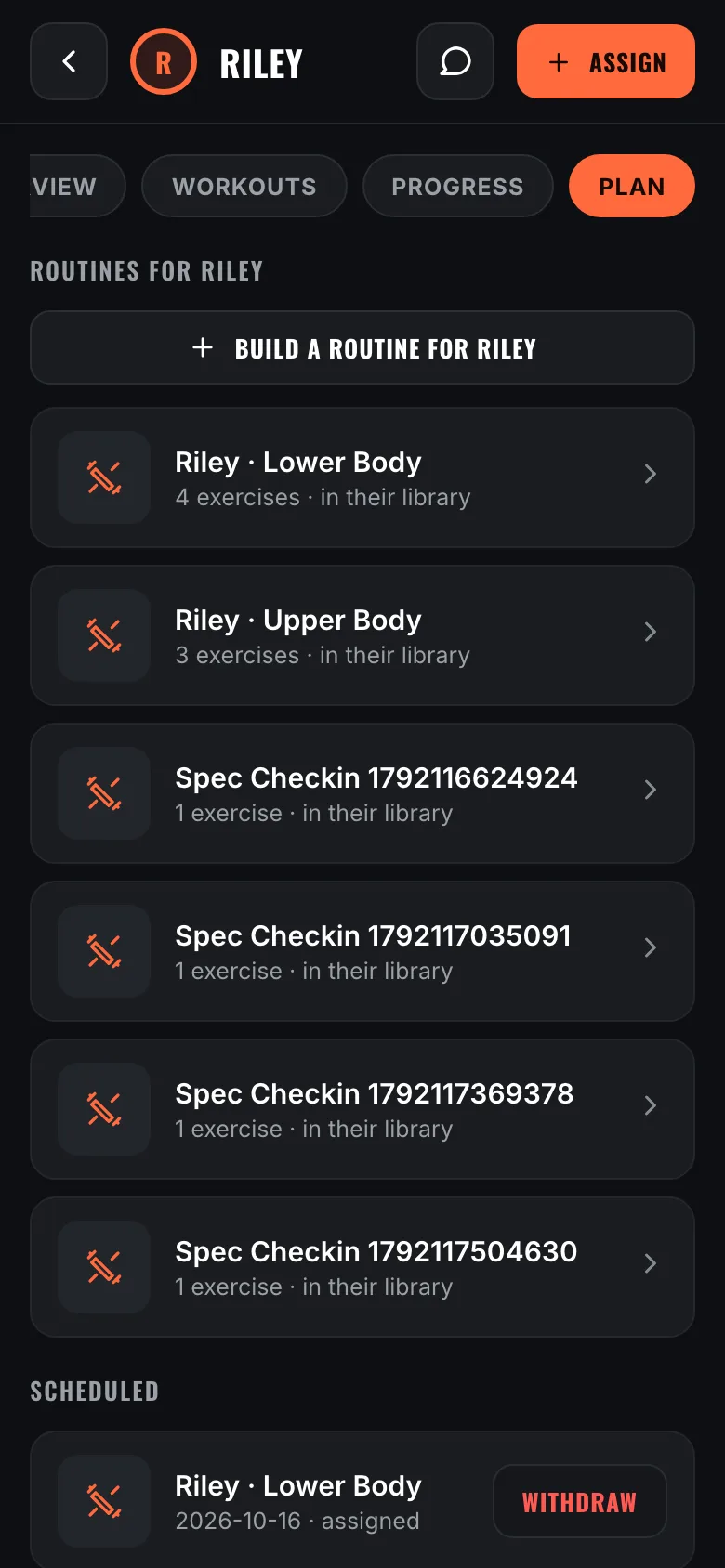
Open a client, go to Plan, and tap Build a routine for them. You build it right there and it saves straight into that client's library, so one-off programming never clutters your own routines.
It stays yours to edit. They can open it and train it any day they like, but they can't change what you wrote.
Your own routines are still there in the Assign sheet, listed under your client-specific ones. Use whichever fits.
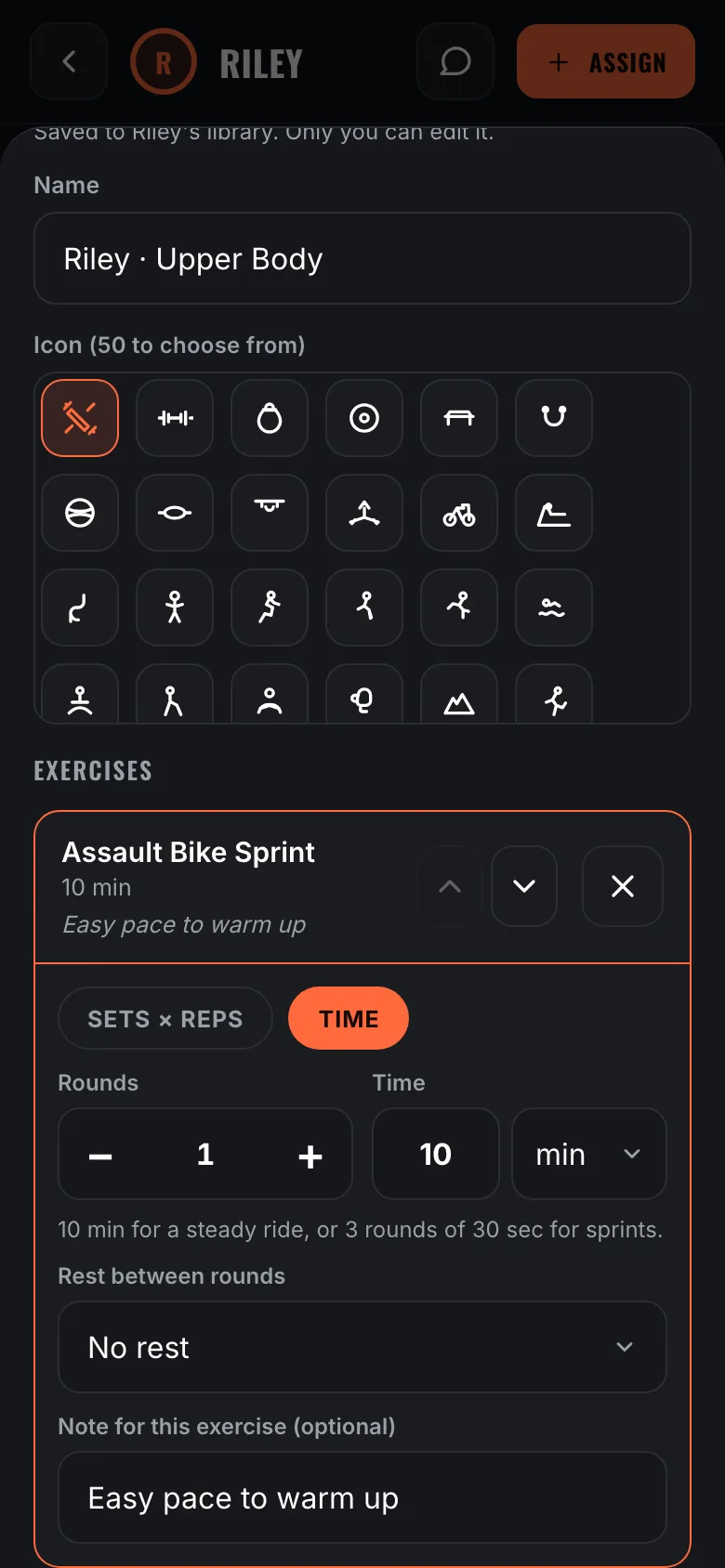
Tap an exercise in the builder and set it the way you'd write it: sets and reps, or Time for cardio with rounds, the rest between sets, and a note they'll see while they train. Move exercises up and down to change the order, and tap New in the picker to add an exercise the library doesn't have.
Change your mind later and the edit reaches every workout you've already assigned from that routine that they haven't started. Anything finished stays exactly as they did it.
Assign pushes a routine onto specific days. Tap the dates you want, or set a weekly rule like Monday, Wednesday and Friday for the next four weeks, and add a note that shows up with the workout and stays on screen while they train it.
A confirmation shows exactly which days it landed on. They see the days ahead and can start one early. It comes back to you as a logged session with their check-in, and you can withdraw anything they haven't done yet.
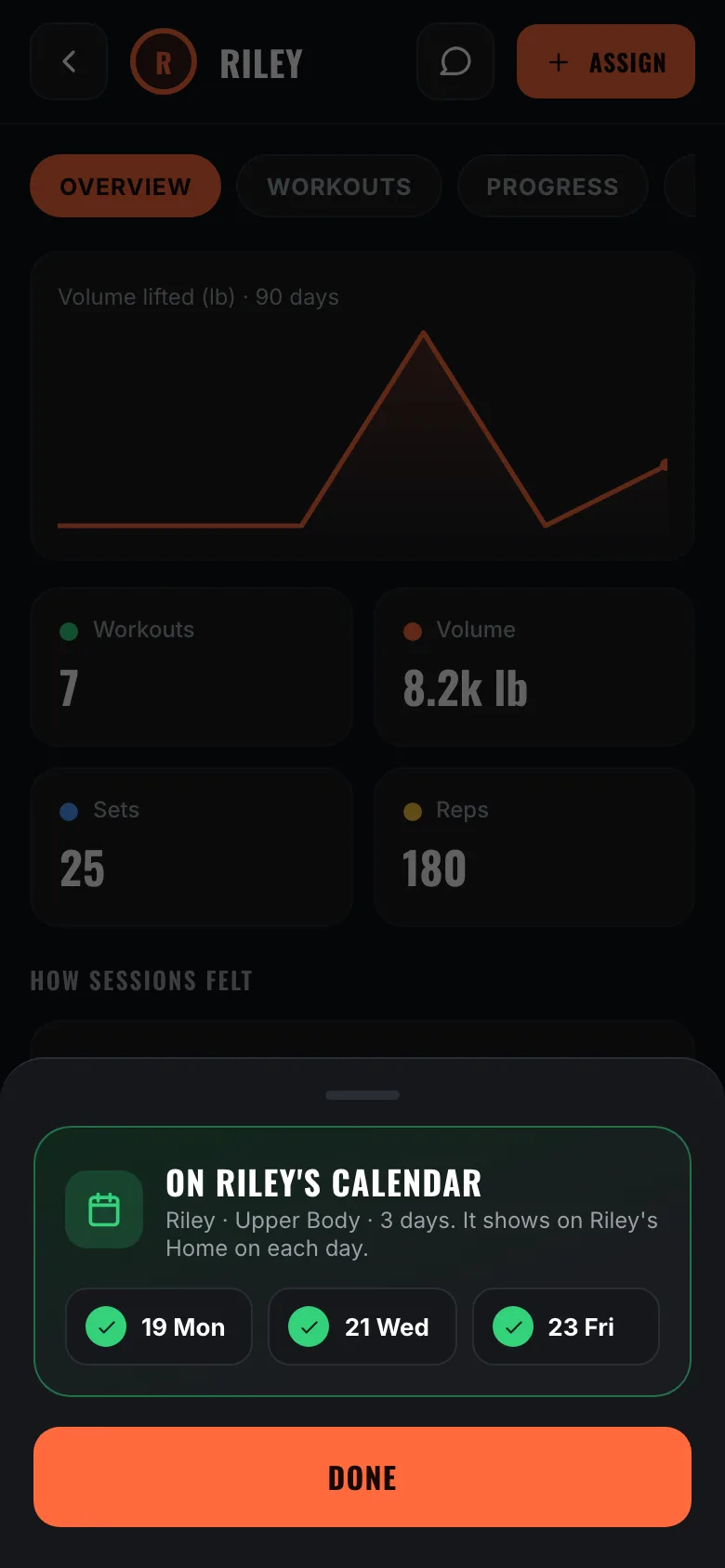
The message button sits next to Assign in the client's header, so the conversation is one tap from the training you're looking at. It's the same thread on both sides, and it keeps its history.
Send photos and videos up to 5 minutes. Record your own demo for any exercise and your clients see it on that exercise, or save a video you sent as the demo with one tap. You'll see when they've read it, and they can heart what you send.
Most of this is here whether or not anyone is coaching you.
Barbell, dumbbell, cable, kettlebell, bands, bodyweight, cardio and the gym machines. Tell WrkFit what you own and the library filters to what you can actually do.
Every connection has a thread. Send messages, photos and videos up to 5 minutes, or point a message at a specific logged workout.
No coach, no partner, no invite. Build routines, log sessions, watch your numbers move. Nothing in the app is gated behind having a coach.
Personal records land the moment you set them, badges mark the milestones, and a weekly goal keeps a streak going. Every finished workout gets its moment. Reduce Motion turns the animation off.
Want company without being coached? Link up as partners and you simply see each other's training. Neither of you programs for the other.
Describe the session you want and WrkFit drafts it from your own library, limited to the gear you own and the sizes it comes in. It always opens in the editor first.
Export everything to CSV free, whenever you like. Delete your account and everything in it from inside the app, no email required.
Lifting costs nothing, forever. The coach pays for the coaching tools, and one plan covers as many clients as they take on.
Either side can unlink at any time. Nothing is deleted, and you keep every session you logged.